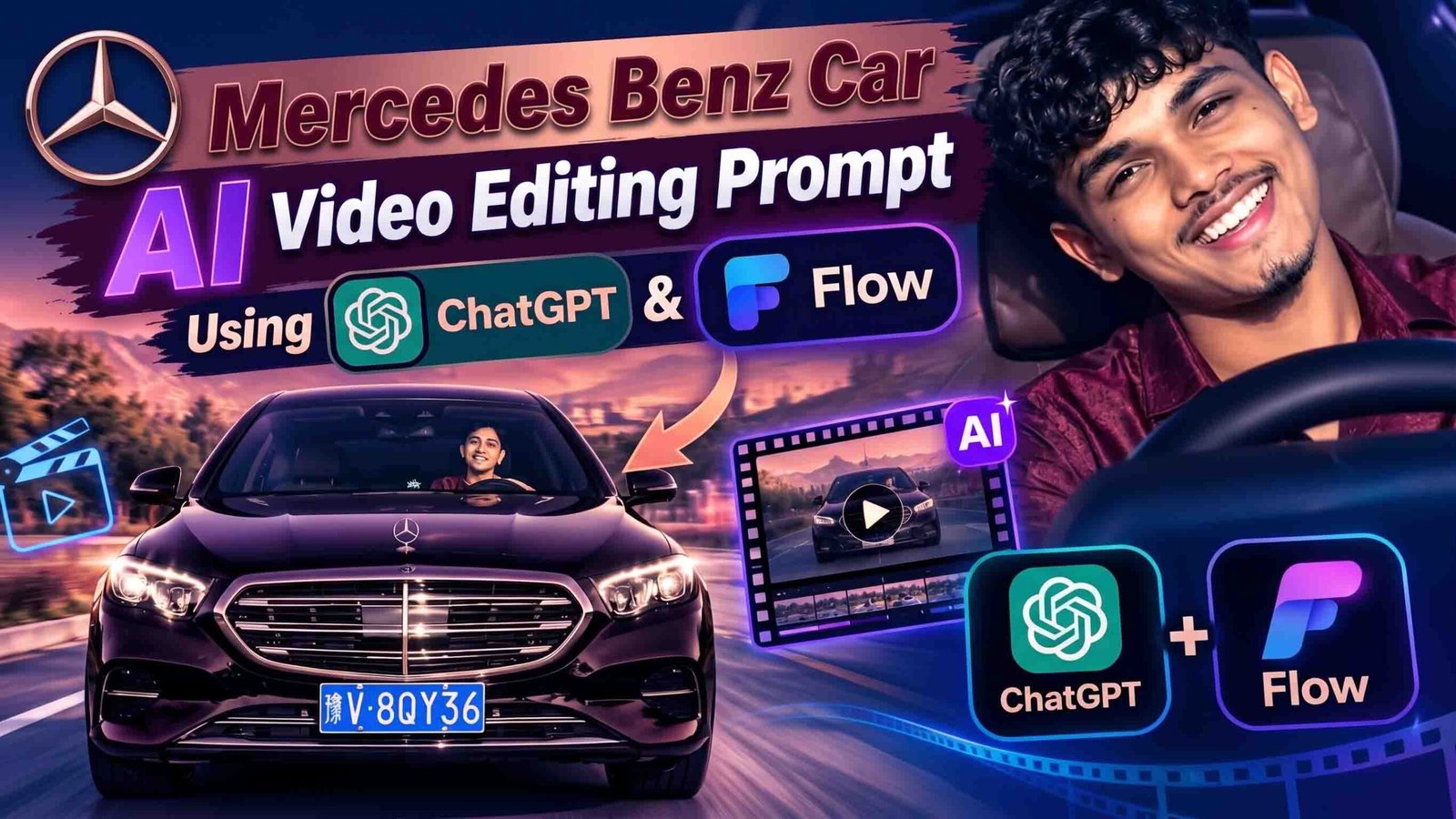
Mercedes Benz Car AI Video Editing Prompt Using ChatGPT and Flow
Want to make a Mercedes Benz car video that looks like a real showroom ad? You don’t need expensive editing skills to do this. Using ChatGPT and Google Flow, you can turn one car photo into a smooth, cinematic video. This guide shows you the steps, the tools, and some simple tips to help your video look its best.
What Is a Mercedes Benz Car AI Video?
A Mercedes Benz car AI video is a short, movie-style clip that shows a luxury Mercedes on a stylish stand or in a showroom setting. It usually has slow camera movement, shiny reflections, and soft lighting, just like a real car ad. You start by creating a car image with ChatGPT. Then you upload that image to Google Flow to turn it into a short video. This style works great for Instagram Reels, YouTube Shorts, and car fan pages. Best of all, you don’t need any real editing or animation skills to make it.
Step 1: Create Your Car Image with ChatGPT
Open ChatGPT and paste in the prompt below. If you already have a photo of your own car, you can upload it along with the prompt so ChatGPT keeps the same design and color.
AI Prompt (Copy & Paste)
Create a photorealistic image of a black Mercedes-Benz parked in a modern showroom. Use soft spotlight lighting, a glossy reflective floor, and a front three-quarter angle. Show sharp detail on the wheels, grille, and star logo. Add cinematic lighting and ultra-realistic textures, 8k quality, no cartoon or 3D style.
Step 2: Turn Your Image into a Video with Google Flow
Once your image is ready, open Google Flow and upload it. Paste in the prompt below to control how the camera moves.
AI Prompt (Copy & Paste)
Animate this Mercedes-Benz image into a cinematic 8-second video. Start with a slow, smooth camera pan across the hood, then gently zoom toward the front grille and headlights. Capture realistic light reflections on the glass and body. Keep the camera movement slow and steady, avoid sudden angle changes, and keep the same car color, wheels, and logo throughout. Add soft studio lighting and subtle floor reflections for a premium showroom feel.
AI Tools You Can Use for This Project
| Tool | Best For |
|---|---|
| ChatGPT | Creating images and prompts |
| Google Gemini | Improving prompts |
| Google Flow | Turning images into video |
| CapCut | Editing video |
| VN | Mobile editing |
| Midjourney | Creating detailed images |
This guide focuses on ChatGPT and Google Flow together, since this combination is the easiest for beginners.
How to Make the Video, Step by Step
- Open ChatGPT and sign in.
- Paste in the image prompt above, or upload your own car photo.
- Wait for the image to generate.
- If you don’t like the result, adjust the color or angle and try again.
- Save the final image to your phone or computer.
- Open Google Flow and sign in with your Google account.
- Start a new project and choose the image-to-video option.
- Upload the car image you made in ChatGPT.
- Paste in the video prompt above.
- Choose a 9:16 ratio if you’re making it for Reels or Shorts.
- Click generate and wait for your video.
- Check the video closely — look at the logo, the wheels, and the reflections.
- Download the video once it looks right.
- Add music or text in CapCut or VN if you want a final polished touch.
How to Pick a Good Reference Image
Your final video only looks as good as the image you start with. Choose a clear, high-quality photo that shows the whole car. A front three-quarter angle or a side angle usually works best for smooth camera movement. Avoid blurry, dark, or cropped photos. Make sure the Mercedes logo and grille are clearly visible, since this helps the AI understand the car’s details.
How to Get a Premium, Showroom-Style Look
To make your video feel like a real car ad, keep the camera movement slow and smooth instead of quick or shaky. Pick a clean showroom background or a dark studio setting. Soft lighting and a glossy floor reflection both add to the premium feel. Black, white, and silver Mercedes cars tend to look the most cinematic in this style.
Tips for a Better Result
Be clear in your prompt that the car’s model, color, wheels, and headlights should stay the same. If Flow changes the car’s design, try simplifying your camera movement instructions. Keep the video short and simple, since fewer actions usually look more realistic. Try generating two or three versions and pick your favorite. If the logo looks distorted, add a note in your prompt asking for a sharp, accurate logo. Always preview your video in full screen before sharing it anywhere.
Common Questions
How do I make a Mercedes car AI video?
First create a car image using ChatGPT, then upload that image to Google Flow along with a video prompt, and click generate.
Can I use a photo of my own car?
Yes. Upload a clear photo of your own Mercedes and use it the same way as a reference image.
Why does the logo look off in my video?
AI tools sometimes struggle with small details like logos. Using a high-quality reference image and mentioning the logo directly in your prompt usually helps.
What angle works best for the car?
A front three-quarter angle usually gives the best result, since it shows both the front and side of the car with smooth camera movement.
Why do the wheels look strange when they spin?
Sometimes the AI generates wheel movement incorrectly. Try asking for slow, natural wheel motion, or keep your camera movement simpler.
Will this video be ready for Instagram Reels?
Yes, as long as you choose a 9:16 ratio. You can also add music and text afterward in CapCut or VN.
Final Thoughts
Making a Mercedes Benz AI car video is easier than it sounds. All you need is a good image, the right prompts, and a bit of patience. Try a few different angles and backgrounds until you get a result you’re happy with, then add music or text for a finished, shareable video.