How to Add Colorful Edge Lighting Notifications to Your Android Phone
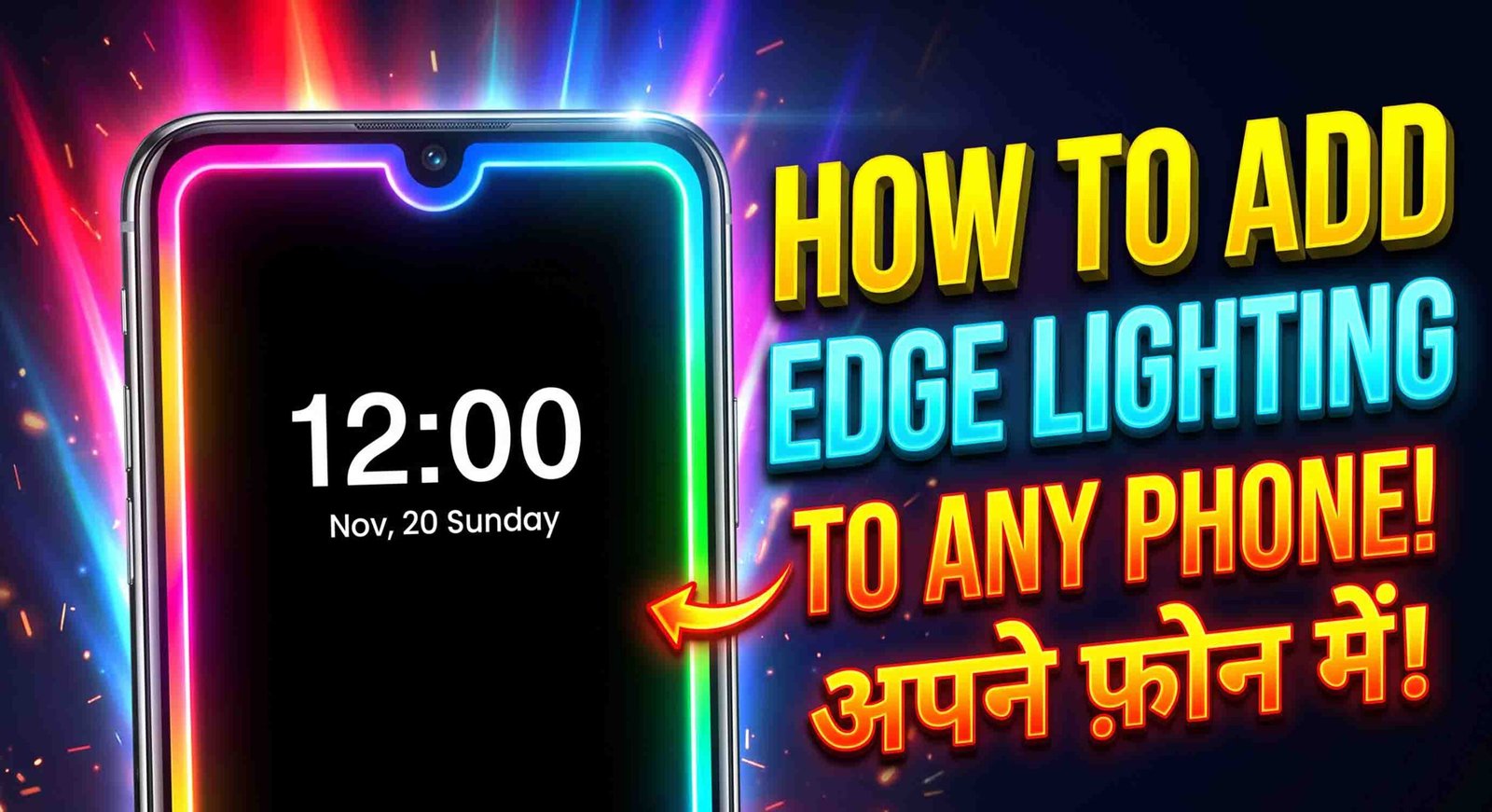
Everyone wants their phone to stand out a little. From wallpapers to themes, there are countless ways to make your Android phone look more attractive, and one feature that really grabs attention is colorful edge lighting. This guide walks you through a simple app that lights up the edges of your screen in color whenever you get a call, SMS, or notification, making your phone look stylish and helping you actually notice when something comes in.
What Does This App Do?
Once set up, this app changes how your phone responds to incoming messages and notifications. Instead of your screen staying plain and easy to miss, colorful LED-style lighting appears around the edges of your display whenever an SMS arrives or a notification comes through from one of your apps.
This solves a common problem too. Notifications can be easy to miss, especially if your screen is off or you’re not looking directly at it. With edge lighting turned on, a burst of color immediately lets you know something’s happening, and it gives your phone a more eye-catching look at the same time.
How to Set Up Edge Lighting on Your Phone
Step 1: Install and Open the App
Download the app, open it, and tap OK to move past the intro screen. You’ll then be asked to allow the app to display over other apps. Enable this permission so the lighting effect can actually appear on your screen.
Step 2: Turn On Incoming SMS Lighting
In the main interface, enable the Incoming SMS option and tap OK. Next, turn on the Edge Lighting feature itself. Give it a few seconds to apply, then exit that screen once it’s done.
Step 3: Choose Which Apps Trigger Lighting
Head to the Other Apps section and enable the option to select specific apps. Once enabled, you’ll see a full list of apps installed on your phone. Go through and select whichever ones you want to trigger the lighting effect when they send a notification, then save your selection.
Step 4: Set the Notification Duration
Tap on Notification Duration and choose how long you want the lighting to stay on screen after a notification comes in. Ten seconds is a common choice, but you can adjust it to whatever feels right, then save your selection.
Step 5: Customize the Edge Lighting Style
This is where you can really make the effect your own. Inside the Edge Lighting settings, you’ll find several options to adjust: 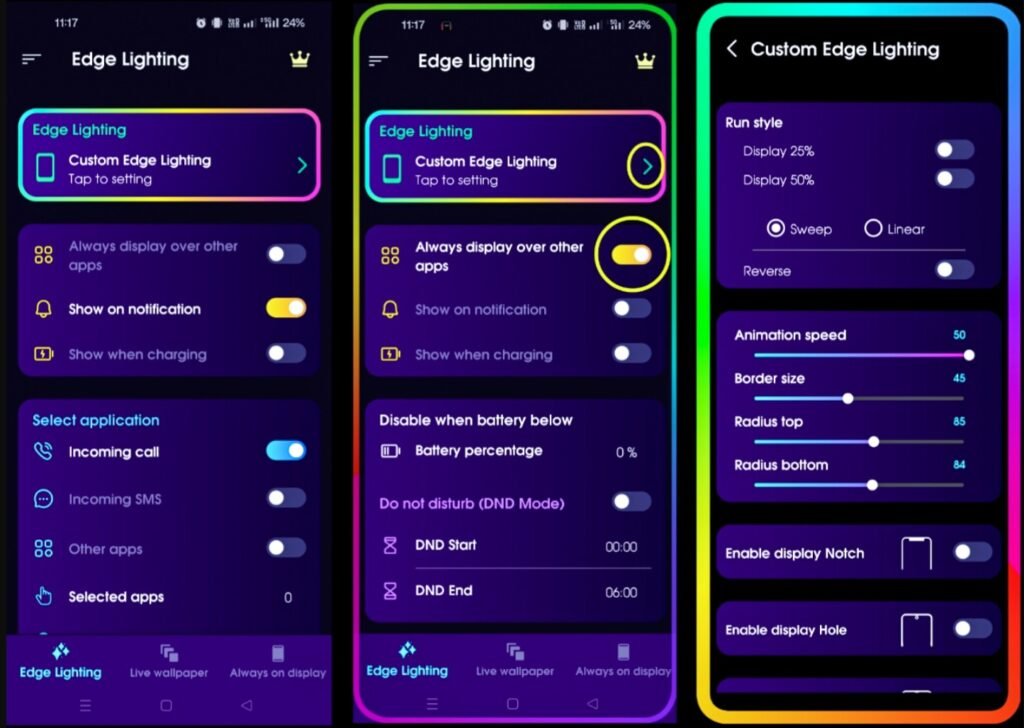
- Animation Speed – controls how quickly the lighting animates across your screen
- Border Size – adjusts how thick the lighting appears
- Radius Top – customizes the curve at the top corners
- Radius Bottom – customizes the curve at the bottom corners
You’ll also find display options for different screen types, including Notch, Hole, and Infinity display styles, so the lighting fits properly around your phone’s camera cutout or notch.
Key Features
- Colorful LED lighting for incoming notifications
- Lighting effects for incoming calls
- Customizable app selection, so only the notifications you care about trigger it
- A flashlight alert option
- Vibrant and silent mode settings
- An option to hide notification content for privacy
- Lighting effects while your phone charges

Final Thoughts
A simple app like this can completely change how your phone looks and feels day to day. Beyond just making your notifications more noticeable, the customizable colors and animations give your phone a unique, standout style that most people won’t have seen before. If you want your phone to look a little more alive every time it buzzes, this is an easy upgrade worth trying.