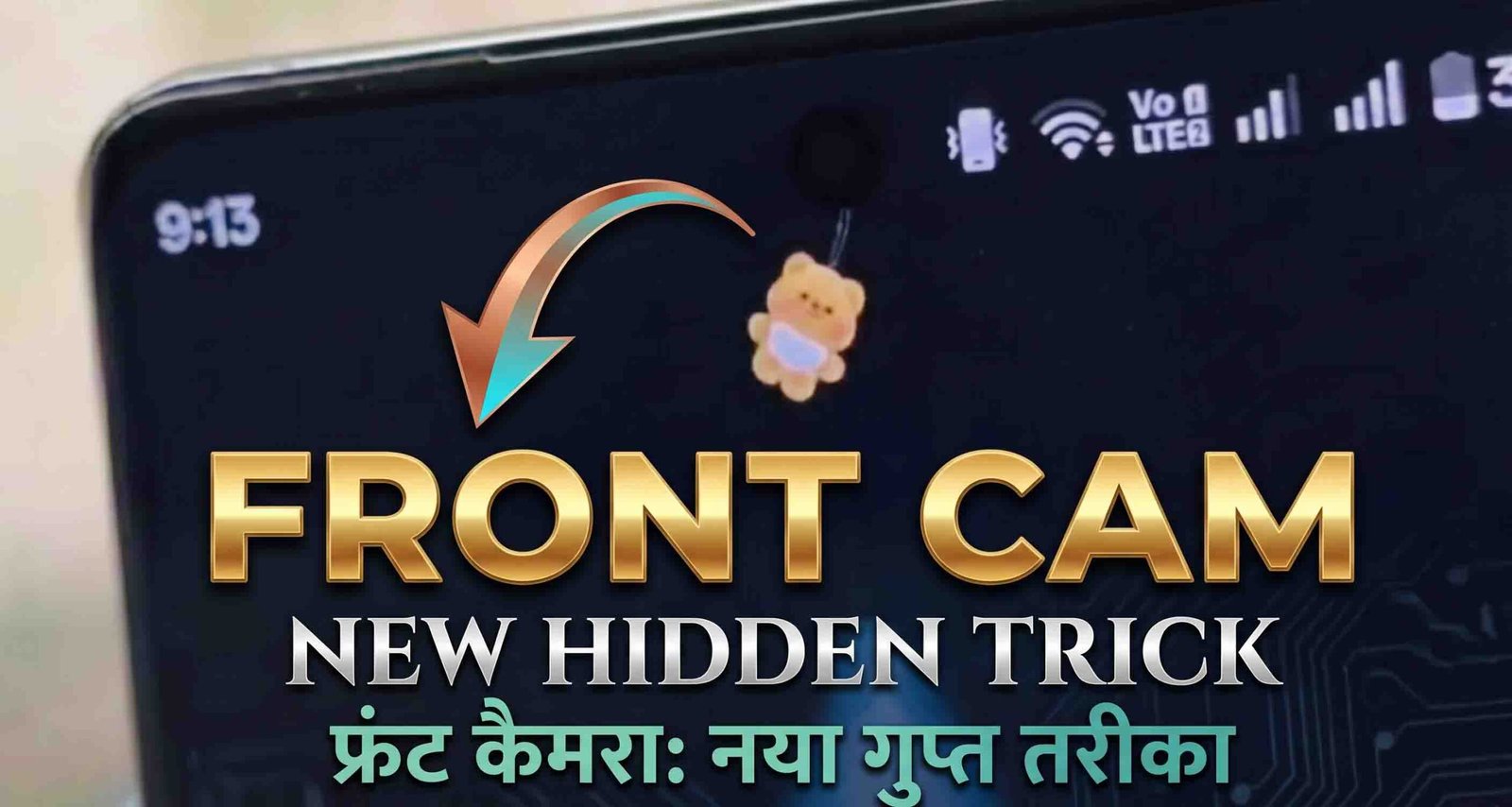
Front Camera Gesture Experience with Pet On Screen Shimeji Kawaii on Android
Modern smartphones are fast, smart, and packed with features, but they can also feel a little cold and robotic. That’s why more people are looking for ways to make their phones feel warmer and more personal. That’s exactly what the Front Camera Gesture experience, paired with the Pet On Screen Shimeji Kawaii app, brings to the table.
Instead of a plain wallpaper or a static home screen, this app adds a small animated companion that lives right on your display and reacts to what you do. The result is a phone that feels more alive, more interactive, and a lot more fun to use.
What Is the Front Camera Gesture Style?
Despite the name, Front Camera Gesture doesn’t mean your camera is watching you. It actually describes how your on-screen pet reacts to your touch and movement. Swiping, tapping, dragging, or even just leaving your phone idle for a while can trigger different reactions from your pet.
This makes using your phone feel a bit more natural, almost like interacting with a small living creature instead of a flat screen.
What Makes Pet On Screen Shimeji Kawaii Different
Unlike a lot of decorative apps, Shimeji Kawaii puts real thought into animation and behavior. Each pet has its own personality, movement style, and way of reacting to you.
- Some pets are energetic and playful
- Some stay calm and move slowly
- Some like to climb, jump, or hide
- Some react strongly whenever you touch the screen
This variety keeps the experience feeling fresh instead of repetitive.
How to Set Up Pet On Screen Shimeji Kawaii
Getting your pet up and running only takes a few minutes.
- Open the Google Play Store and search for “Pet On Screen Shimeji Kawaii.”
- Tap Install and wait for the download to finish.
- Open the app once installation is complete.
- Grant the overlay permission when prompted, so your pet can appear on top of other apps.
- Browse the character list and pick the pet you want.
- Confirm your choice to activate it on your screen.
- Exit the app and return to your home screen to see your pet in action.
How to Customize Your Pet
Once your pet is active, you can fine-tune how it looks and behaves.
- Open the app and go to the Settings or Customization menu.
- Adjust the pet’s size using the slider provided.
- Set the movement speed to match your preference, slow and calm or quick and playful.
- Toggle interaction on or off, depending on whether you want the pet to respond to touch.
- Browse other available characters and switch to a new one anytime.
- Save your changes so they apply right away.
How to Hide or Pause Your Pet
If you ever need a break from the animation, this takes just a moment.
- Open the app from your app drawer or notification shortcut.
- Tap the Hide or Pause option.
- Your pet disappears from the screen instantly.
- Reopen the app and tap Show whenever you want it back.
How It Changes the Way You Use Your Phone
Instead of just scrolling through apps without much thought, many users say they feel more engaged with their phone once they add a pet like this. It becomes a small visual companion that adds a bit of entertainment and charm to everyday use.
It can also work as a simple stress reliever. Watching small, gentle animations move around your screen tends to feel surprisingly calming.
Who Will Enjoy This App
This kind of app tends to appeal to people who love visual customization, anime and kawaii fans, kids who enjoy friendly animations, anyone looking for a more relaxing phone experience, and creators who want a playful aesthetic for their content.
Battery, Performance, and Safety
The app stays lightweight and well optimized, so it won’t drain your battery heavily. It also doesn’t access your personal data. The overlay permission it uses is only there to display the pet on top of other apps, nothing more. It runs smoothly on most modern Android phones.
Common Questions
Does it affect gaming or video playback?
No. The pet floats gently on the screen and doesn’t get in the way of performance.
Can I remove it anytime?
Yes, you can turn it off instantly through the app’s controls.
Is it safe for kids?
Yes, the pet is friendly, non-violent, and completely safe to look at.
Final Thoughts
The Front Camera Gesture style, combined with Pet On Screen Shimeji Kawaii, gives your phone a refreshing bit of personality. It adds charm and life to your screen without making anything complicated. If you want your phone to feel a little more like a companion and a little less like a machine, this app is worth trying out.