Customize Your Android Like iPhone – Android to iPhone
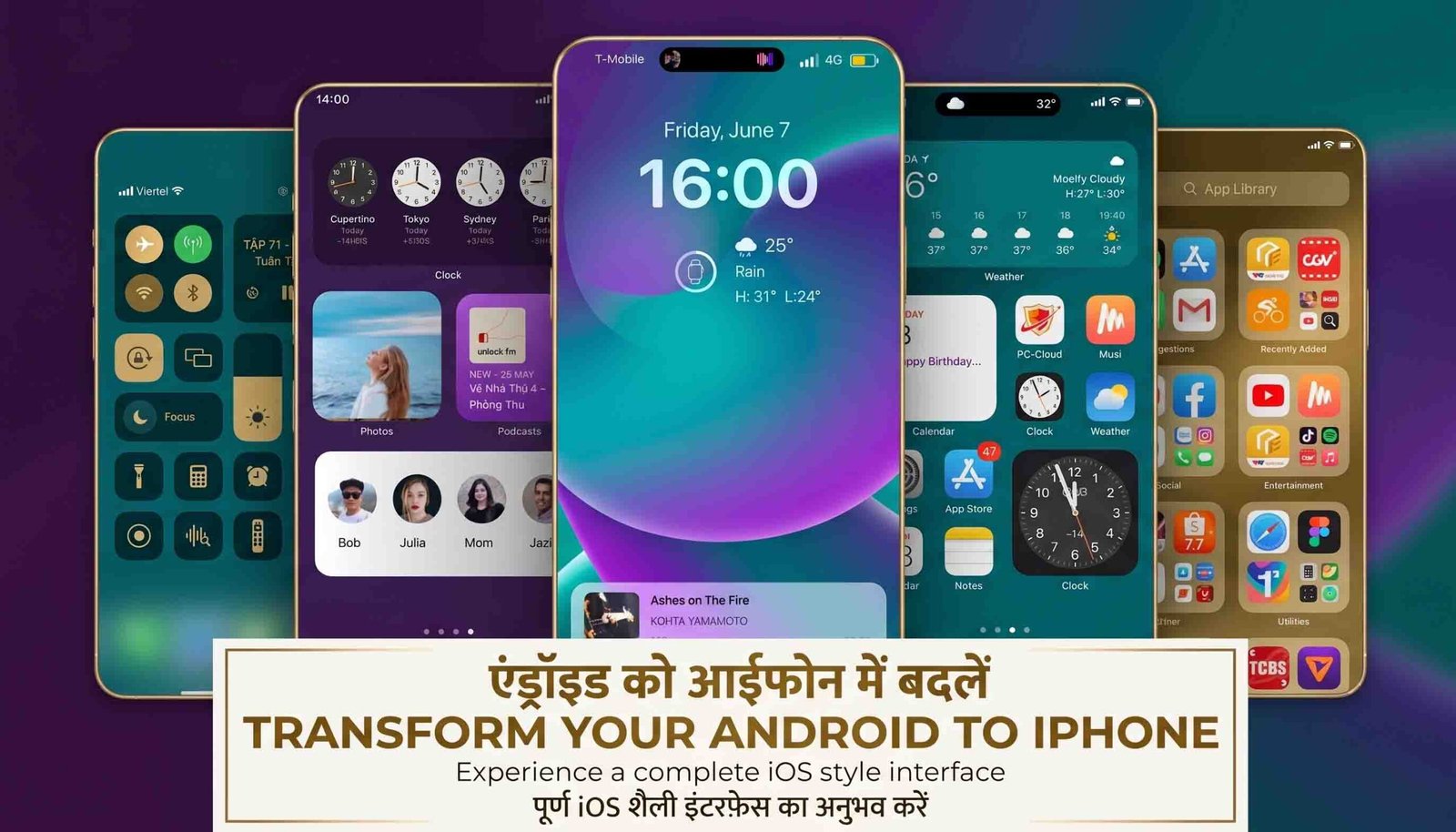
Switching from Android to iPhone can feel exciting at first. But the iPhone’s screen can also feel strange if you’re used to Android. Android phones let you use launchers, themes, and widgets to change your home screen. iPhones don’t give you as much freedom. But don’t worry — you can still make your iPhone feel more like Android. Here’s how.
What Is a Launcher?
A launcher is an app that changes how your home screen looks. It lets you organize apps, change icons, add widgets, and more. Android phones let you fully control this with launcher apps. iPhones don’t allow this in the same way. You can’t install a full Android-style launcher on an iPhone. But you can still make small changes that bring some of that same feel.
Add Widgets to Your Home Screen
Widgets are one of the best parts of Android. Good news — iPhones have widgets too. Press and hold an empty spot on your home screen until the icons start to wiggle. Then tap the “+” button in the top corner. You’ll see widgets from apps like Notes, Calendar, and Weather. Pick the ones you like and add them to your screen.
Change Your App Icons
iPhones don’t let you fully customize icons like Android launchers do. But you can still change them using the Shortcuts app. Create a shortcut for any app, then choose a custom picture as its icon. This is a simple way to give your iPhone a new look, just like Android users do.
Organize Your Apps into Folders
Android users often group apps into folders. iPhones let you do this too. You can also use App Library, a feature in iOS 14 and later. It automatically sorts your apps into groups. This keeps your home screen clean and easy to use.
Try a Different Keyboard
Miss your Android keyboard? You can download apps like Gboard or SwiftKey on your iPhone. These keyboards feel familiar if you used them on Android. They also include swipe typing and custom themes, just like before.

Final Thoughts
Your iPhone won’t work exactly like Android. But you can still make it feel familiar. Add widgets, change your app icons, organize apps into folders, and switch to a keyboard you know. These small changes help you enjoy the best of both worlds.