How to Set Display Fingerprint Lock on Your Android Phone
Typing a PIN or drawing a pattern every time you want to check your phone gets old fast. A fingerprint lock skips all that — one tap on the sensor and you’re in. If you haven’t turned this on yet, here’s how to get it set up in just a few minutes.
Step 1: Confirm Your Phone Has a Fingerprint Sensor
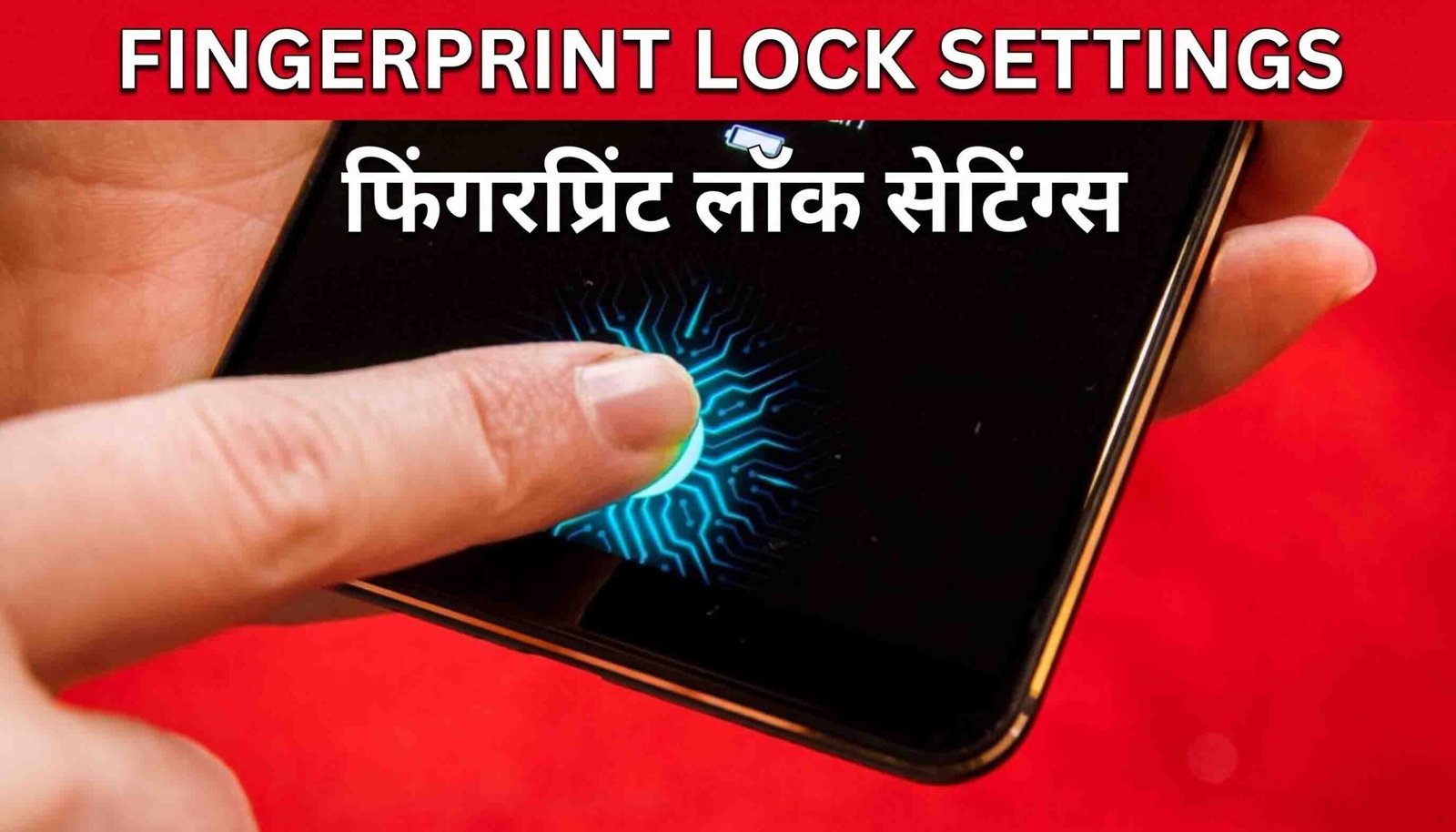
Not every Android device includes one, so check first. Depending on the model, the sensor might sit on the back of the phone, along the power button on the side, or built right into the display itself. If you can’t find one anywhere on your phone, this feature won’t be available to you.
Step 2: Open the Settings App
Head to Settings, either from your app drawer or by swiping down from the top of the screen and tapping the gear icon.
Step 3: Find the Security Menu
Inside Settings, look for a section labeled Security, Biometrics, or Biometrics & Security — the exact name depends on your phone’s brand. Tap into it to see your available lock options.
Step 4: Choose Fingerprint and Set a Backup Lock
Select Fingerprint or Fingerprint Recognition. Before you can register a print, the system will usually ask you to set a backup PIN, pattern, or password first, in case the sensor ever fails to read your finger.
Step 5: Scan Your Fingerprint
Place the finger you plan to use on the sensor and follow the prompts. You’ll likely need to lift and press down several times from slightly different angles so the phone can build a complete map of your print. Take your time here — a thorough scan means fewer failed unlocks later.
Step 6: Turn On the Lock
Once your print is saved, you can enable it for unlocking the screen, confirming app purchases, or approving payments. Most phones let you turn each of these on individually, so pick whichever ones you actually want.
Step 7: Add More Fingers (Optional)
Repeat the scanning process for a couple more fingers — maybe your other thumb or index finger. This makes it much easier to unlock the phone one-handed, no matter how you’re holding it.
Step 8: Try It Out
Lock your screen, then unlock it using the sensor. If it opens right away, you’re all set.

Final Thoughts
A fingerprint lock is one of the fastest upgrades you can make to your phone’s security. It takes a few minutes to set up, and after that you’ll barely think about it — just a quick touch and you’re in.